Mark books as reordered in the Restock Planner
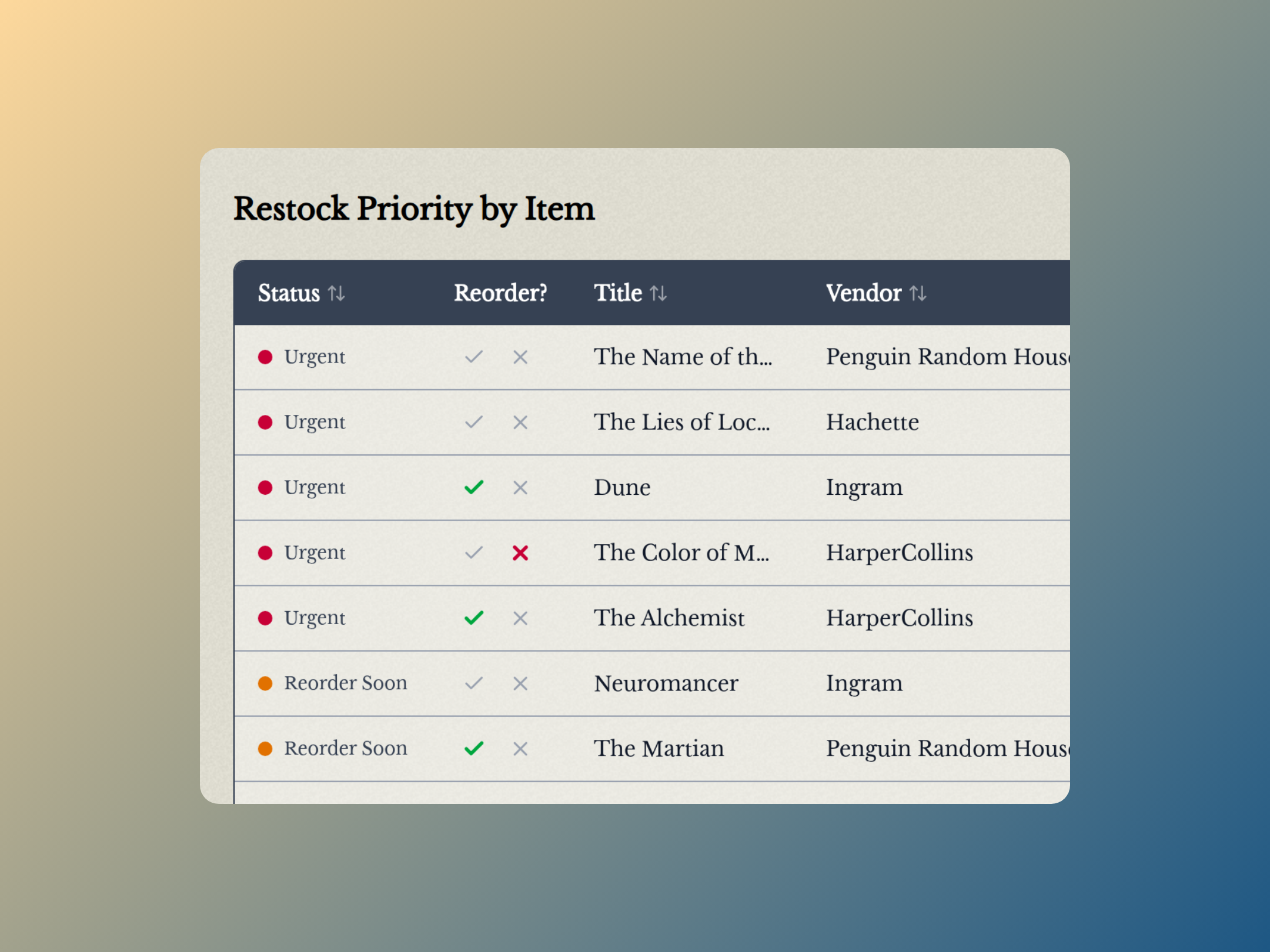
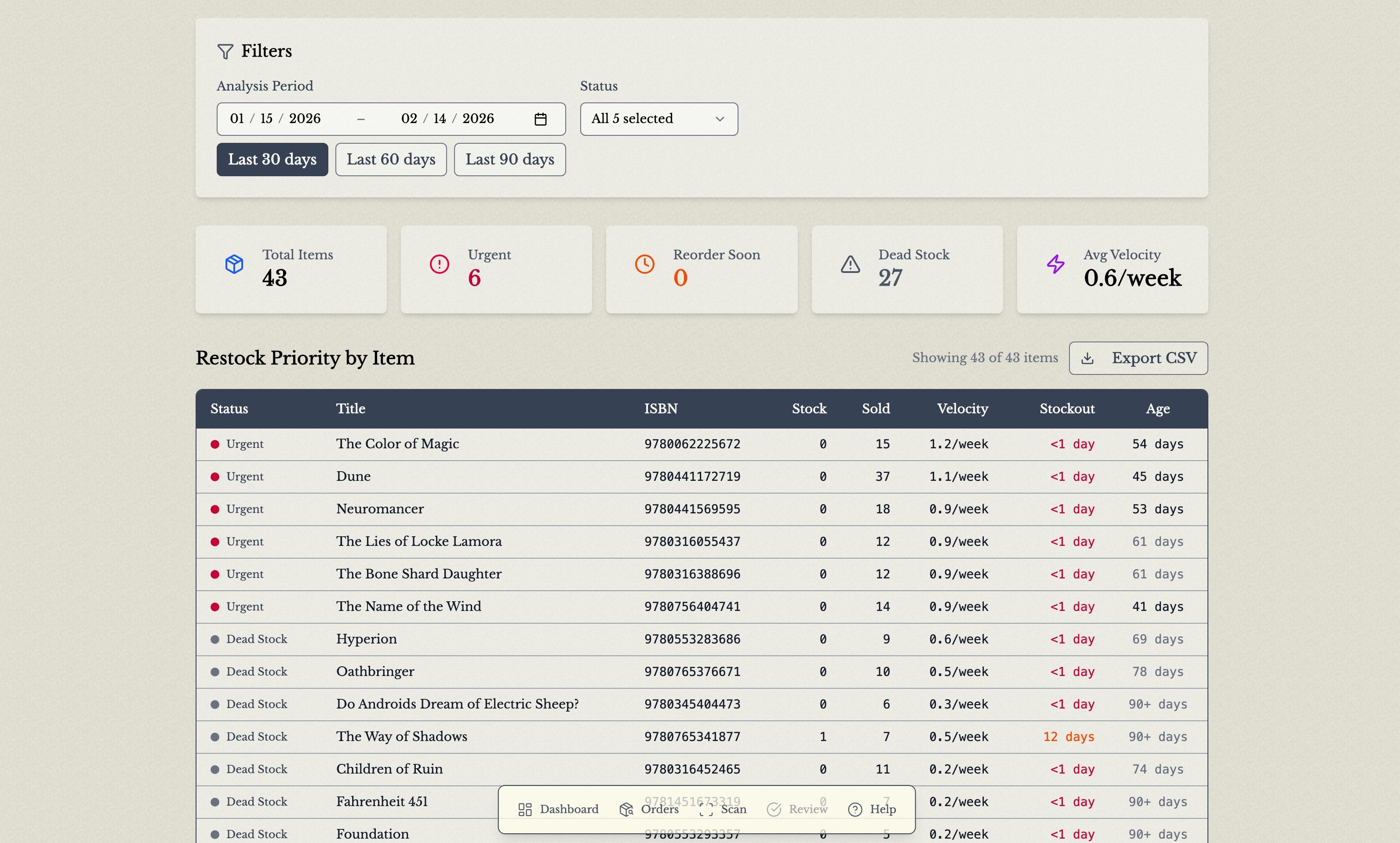
No more checking Edelweiss or Ingram to remember whether you’ve already reordered a book. The Restock Planner now has a Reorder? column so you can mark each title with one click.
What’s New
One-click reorder marks
Each row in the Restock Planner has two buttons in the new Reorder? column:
- ✓ Ordered: you’ve placed a reorder for this book
- ✕ Not reordering: you’ve decided not to restock it
Click a mark again to clear it. Hover over a mark to see how long ago it was set.
Marks are saved to your store, so everyone on your team sees the same marks on any device.
Marks clear automatically when books arrive
When a marked book is received into your Square inventory, its mark is cleared automatically. This works whether you process the order in book by book or receive the stock directly in Square. Once the book is back on the shelf, it’s back in the normal restock rotation.
Cleaner CSV exports
Books marked Ordered or Not reordering are left out of the Restock Planner CSV export, so you won’t accidentally order the same book twice.
How to use it
- Open the Restock Planner from your Dashboard.
- After you place an order with your wholesaler or publisher, click ✓ next to each book you ordered.
- Click ✕ on any books you’ve decided not to restock.
- When the books arrive and you process them into Square, the marks clear on their own.
As always, let us know if you have questions or feedback!